I have verified enough. Writing the page now.
The Board View
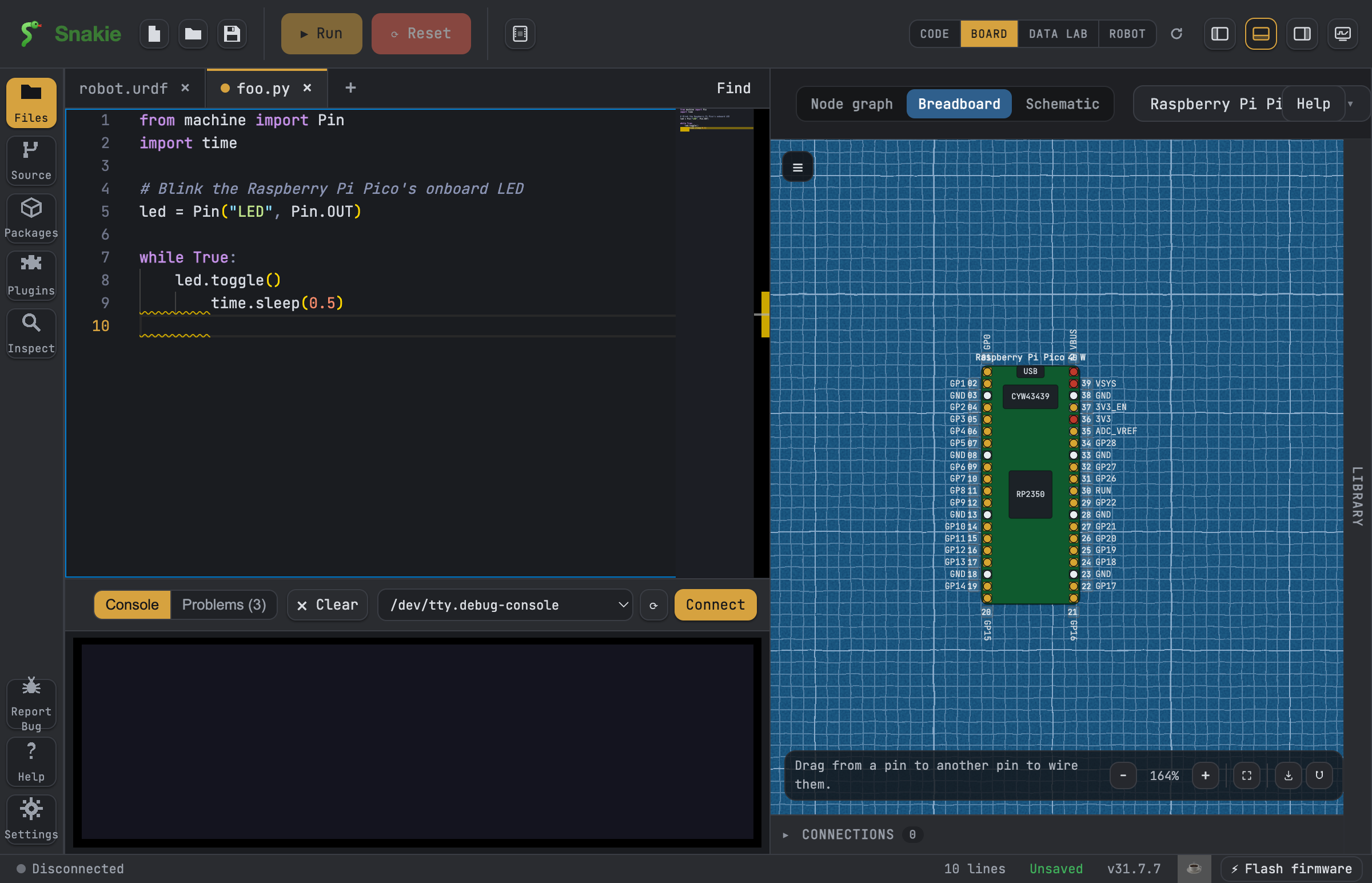
The Board View is a special window that draws a picture of your circuit from your code. You write MicroPython, and Snakie shows you which pins you are using and what they are doing — live, as your board runs.
What problem it solves
When you wire up a board, it is easy to lose track of which pin does what. Was the LED on pin 15 or pin 25? Is that sensor talking on the right two wires? A tangle of jumper wires does not tell you much.
The Board View answers those questions for you. It reads your program and turns it into a clear, labelled diagram of the real board, so you can see your wiring instead of holding it all in your head.
How it works
Snakie does three things, over and over, while you type:
- It reads your code. "Parsing" just means the app looks through your source and picks out the important parts. Snakie searches for the
machinebuilding blocks —Pin,PWM,I2C,SPIandStateMachine— and notes every pin you pass to them. - It works out the role of each pin. A role is the job a pin is doing. Snakie can tell an input (reading a signal) from an output (driving a signal), and also spots PWM (a fast on/off signal, used for dimming and motors), ADC (reading an analog voltage), and the bus pins for I2C and SPI (two ways chips talk to each other) and PIO (the Pico's programmable I/O).
- It matches those pins to the real board. Snakie knows the pin layout of each supported board, so it lines your pins up against the actual pads and draws them in the right place.
The result is a node graph: a diagram where each pin you use gets its own connection card, colour-coded by role, joined to the board by a line (a "noodle").
Note
The Board View streams live. You do not press a button to refresh it — edit your code and the drawing updates itself.
Live values
When your board is connected and running, the node graph does more than draw pins. It shows the current value of each one:
- An input or output shows its level,
0or1. - A PWM pin shows how hard it is driving.
- An ADC pin shows the voltage it is reading.
- An I2C, SPI or PIO connection shows whether the bus is active.
Snakie reads these gently, without disturbing your program, so watching them is safe. This makes the Board View a great debugging tool — debugging means finding out why something is not working. If your LED will not light, you can glance at the graph: is that pin an output? Is it going 1? The picture often tells you the answer faster than re-reading your code.
Explore the drawing
You can zoom in and out, rotate the board 90° to match how it sits on your desk, and fit the whole thing to the window. When you want to share your wiring, you can export the diagram as an SVG, PNG or PDF.
Tip
The Board View also has Breadboard and Schematic tabs for laying parts out by hand. The node graph is the view that reads your code and shows live values.
Where to go next
- Try it step by step in the Board View tutorial.
- Learn the everyday actions in the Board View guide.
- See which boards Snakie can draw in Supported boards.