Your first steps
Welcome to Snakie! This page gives you a quick tour of what you see when Snakie opens, and shows you how to plug in a board and run your very first bit of code.
What Snakie looks like
When Snakie opens, you'll see a few main areas. Here's a map so nothing feels strange.
| Area | Where it is | What it does |
|---|---|---|
| Editor | The big space in the middle | Where you type your code. You can open several files in tabs. |
| Activity bar | A thin strip down the left | Buttons that open different views (your files, the board view, packages, and more). |
| Shell / console | Along the bottom | Shows messages from your board and lets you type commands straight to it. This is the REPL — a place where the board reads a line, runs it, and prints the answer. |
| Status bar | The very bottom edge | Small live info, like whether a board is connected. |
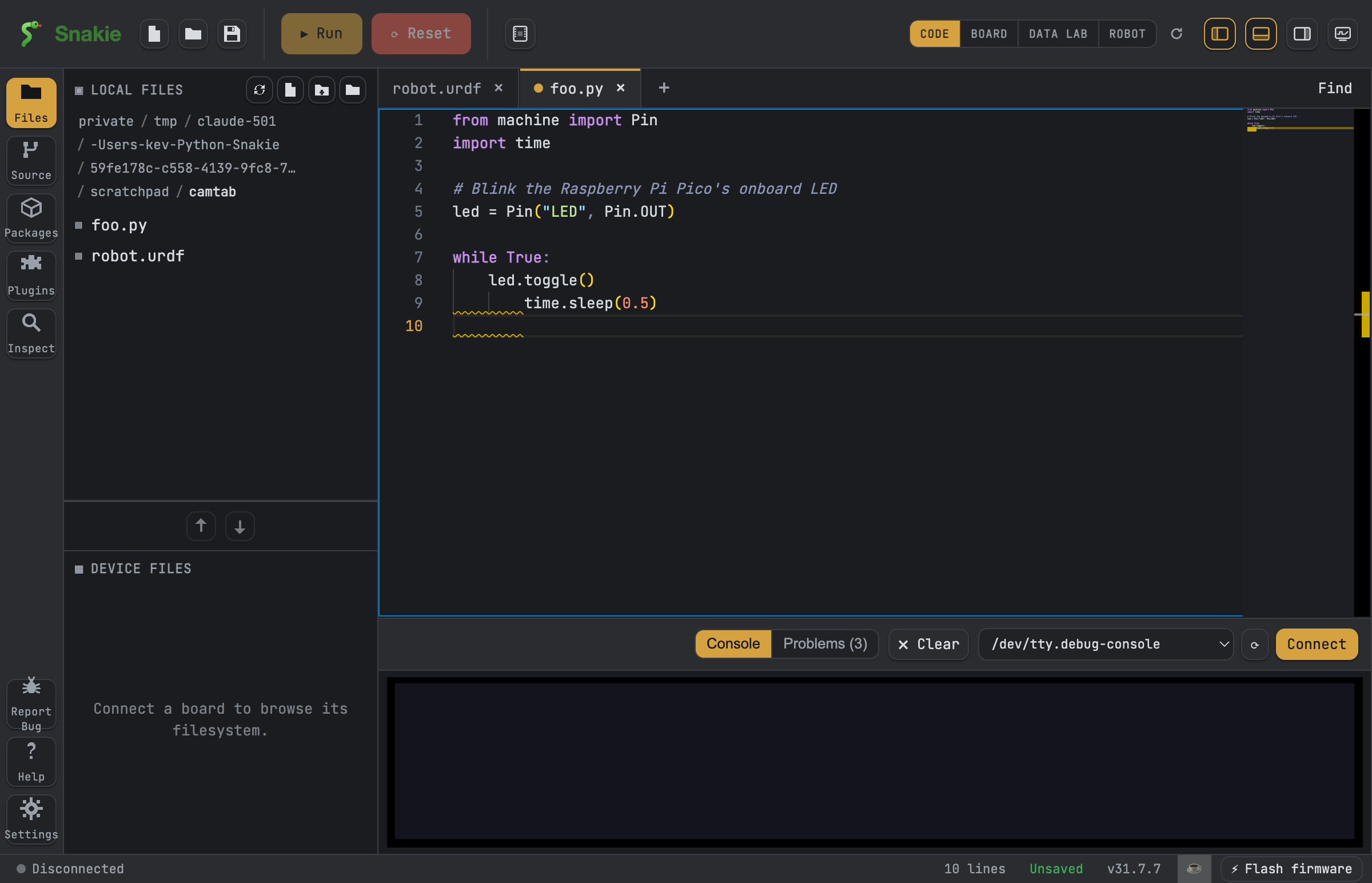
Take a moment to click around the activity bar. Looking is completely safe — nothing runs until you tell it to.
Plug in your board
A board is a tiny computer, like a Raspberry Pi Pico. You talk to it over a USB cable.
- Connect your board to your computer with a USB cable.
- Find the Connect button in the shell header (at the top of the console).
- Click it, then pick your board from the list.
When it works, the button changes to Disconnect, and the status bar shows you're connected.
Tip
Not sure which item in the list is your board? Unplug it, look at the list, plug it back in, and see which name appears. That one is yours.
Want more detail, or hitting a snag? See Connecting your board.
Run and Stop
Once a board is connected, two buttons in the toolbar do the important jobs:
- Run (▶) sends the file you're editing to the board and runs it right away.
- Stop (■) halts a running program. When nothing is running, this same button becomes Reset (⟳), which gives the board a gentle restart (a "soft reboot") to clear it out and start fresh.
What is MicroPython?
Your board speaks MicroPython — a small version of the Python language made for little computers. New to it? Read What is MicroPython?.
Nothing here can break your board
This is the most important part: you cannot damage your board by writing code in Snakie.
If a program misbehaves, press Stop or Reset and the board goes back to normal. If you ever get really stuck, unplug the USB cable and plug it back in. Boards are made for exactly this kind of tinkering, so feel free to experiment.
Warning
The one thing to be gentle with is the hardware: don't touch the metal pins while it's plugged in, and don't wire components in odd ways without checking a guide first. The code side is safe to play with all you like.
Try it out
Ready to make something happen? Here's a tiny program that blinks the light built into a Raspberry Pi Pico.
from machine import Pin
import time

led = Pin("LED", Pin.OUT)

while True:
    led.toggle()
    time.sleep(0.5)
Paste it into the editor, press Run, and watch the little light flash. Press Stop when you've seen enough.
Where to go next
- Follow the full, step-by-step Blink tutorial to understand every line.
- Browse all the tutorials to see what else you can build.
Have fun — you're all set to start coding!