Install Snakie
This page shows you how to put Snakie on your computer. Snakie is a friendly code editor for MicroPython — a small version of the Python programming language that runs on tiny computer boards. Pick your computer type below and follow the steps.
Just want to try it? No install needed.
Snakie also runs in your web browser at app.snakie.org — the editor, the simulator and the 3-D Robot View, with nothing to download. It's a great way to start (especially on a Chromebook). See Snakie in your browser. Install the desktop app when you want to work with a real board.
Get the installer
Snakie is a free download. Every version lives on its Releases page on GitHub (the website where the app's code is kept).
- Open the releases page: github.com/kevinmcaleer/Snakie/releases/latest.
- Scroll to the Assets list. This is where the download files are.
- Download the file that matches your computer (the table below tells you which one).
Not sure which file?
An installer is a file that puts the app on your computer for you. Each type of computer needs its own installer, so grab the one made for yours.
| Your computer | Download this file |
|---|---|
| Windows (most PCs) | Snakie-Setup-<version>.exe |
| Mac with Apple Silicon (M1/M2/M3 and newer) | the arm64 .dmg |
| Mac with an Intel chip (older Macs) | the Intel .dmg |
| Linux PC | .AppImage or .deb (x64) |
| Raspberry Pi (64-bit Pi OS) | the arm64 .AppImage |
Which Mac do I have?
Click the Apple menu in the top-left corner, then About This Mac. It tells you whether you have Apple Silicon or an Intel chip.
Install it
- Double-click the
Snakie-Setup-<version>.exefile you downloaded. - If Windows shows a blue "Windows protected your PC" box, click More info, then Run anyway. This appears because Snakie is a newer app.
- Follow the setup steps. When it finishes, open Snakie from your Start menu.
- Double-click the
.dmgfile to open it. - Drag the Snakie icon onto the Applications folder.
- Open Applications and double-click Snakie. The first time, right-click the icon and choose Open, then Open again to let macOS trust it.
AppImage (works on most Linux PCs):
- Make the file runnable. Right-click it, choose Properties, and tick Allow executing file as program — or run in a terminal:
- Double-click the file to launch Snakie.
.deb (for Debian/Ubuntu):
Use the arm64 AppImage on 64-bit Raspberry Pi OS.
- Make it runnable:
- Double-click it to open Snakie.
An AppImage does not add itself to the menu. Snakie ships a small helper script that adds it for you, under the Programming menu:
Tip
Run the helper again after you download a newer version so the menu points at the new file. To remove the entry, run it with --uninstall.
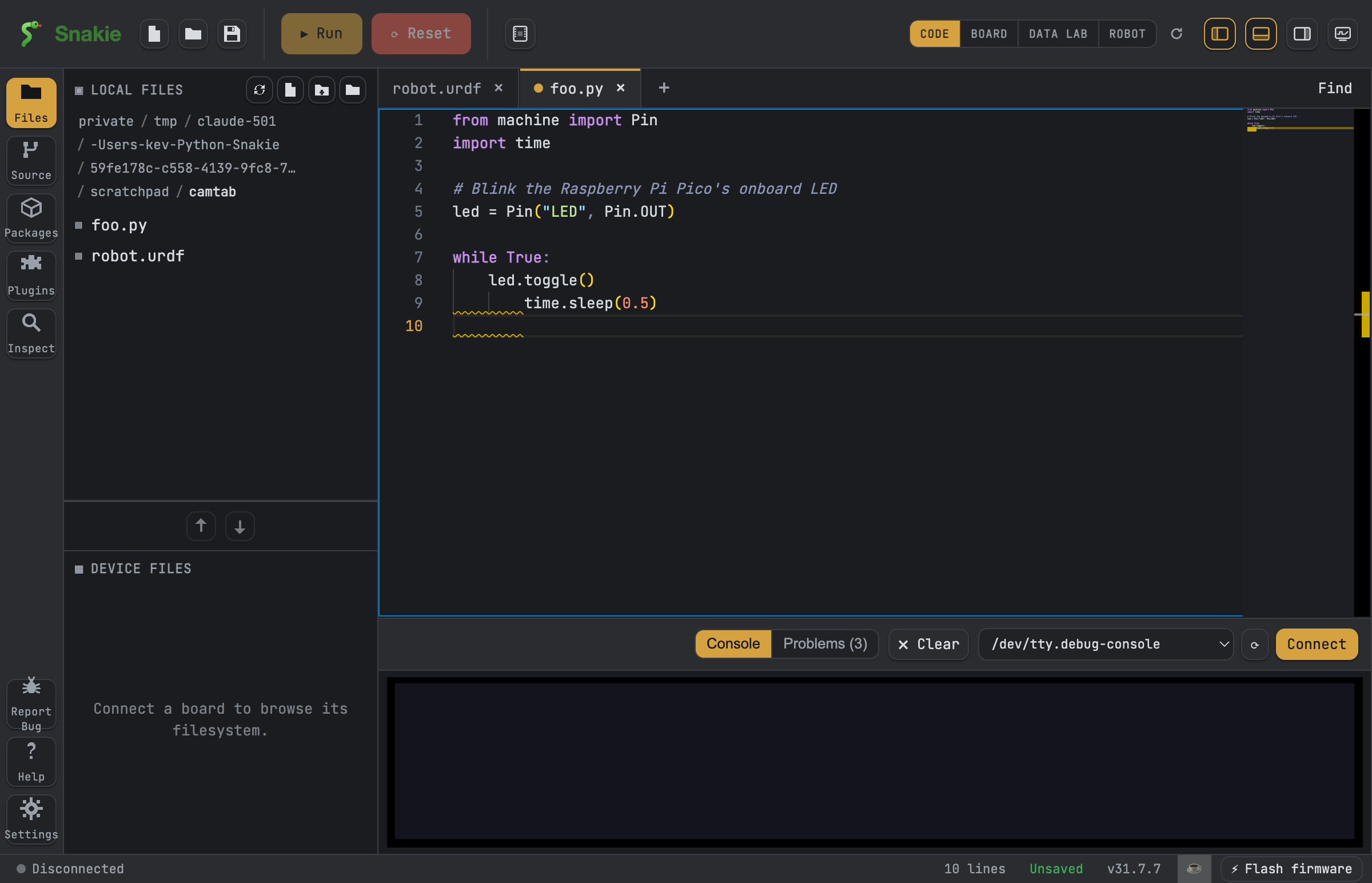
Snakie keeps itself up to date
Good news — you do not need to reinstall every time. When you open Snakie and a newer version is available, it tells you inside the app so you can update with a click.
What next?
- New to tiny boards? Read What is MicroPython? for a gentle overview.
- Ready to explore the app? Head to Your first steps.
- Want to make a light blink straight away? Try the Blink tutorial.
Welcome to Snakie — have fun building things!